
Resource Sharing
Resource Sharing Library service
- steps
- 7
Step 1
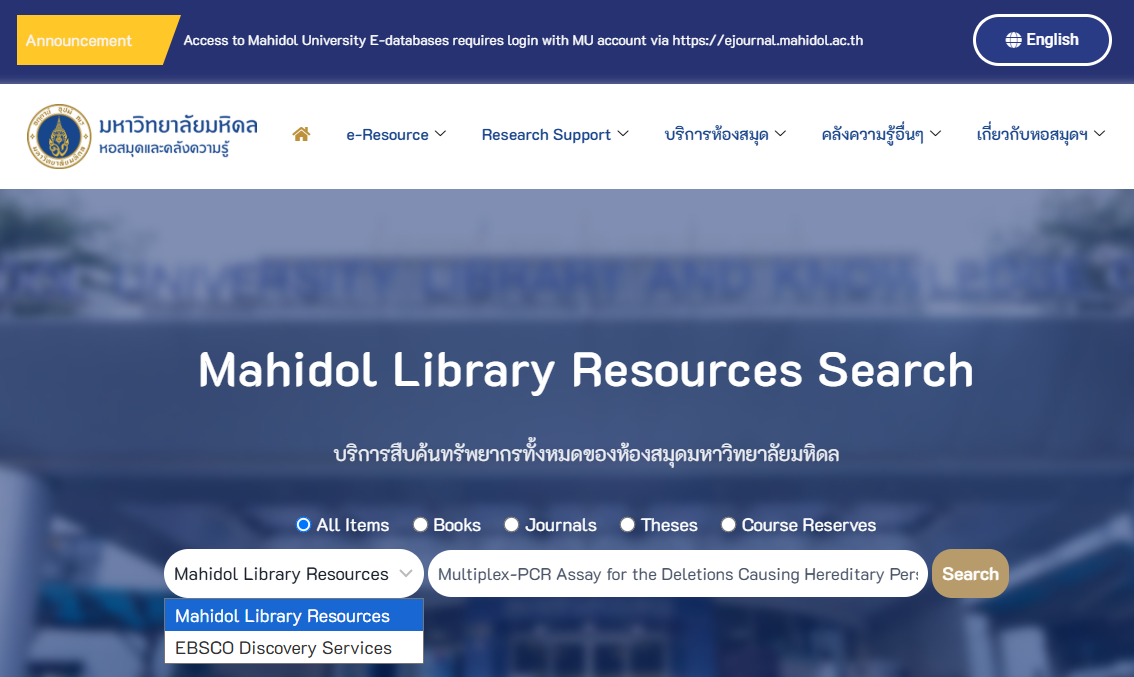
Search for the library resources you need and submit your request through the library website — www.li.mahidol.ac.th — by selecting “Mahidol Library Resource” as your search option, then click “Search”.
Step 2
On the search results page, users have to sign in with the library account at “Sign in” or the
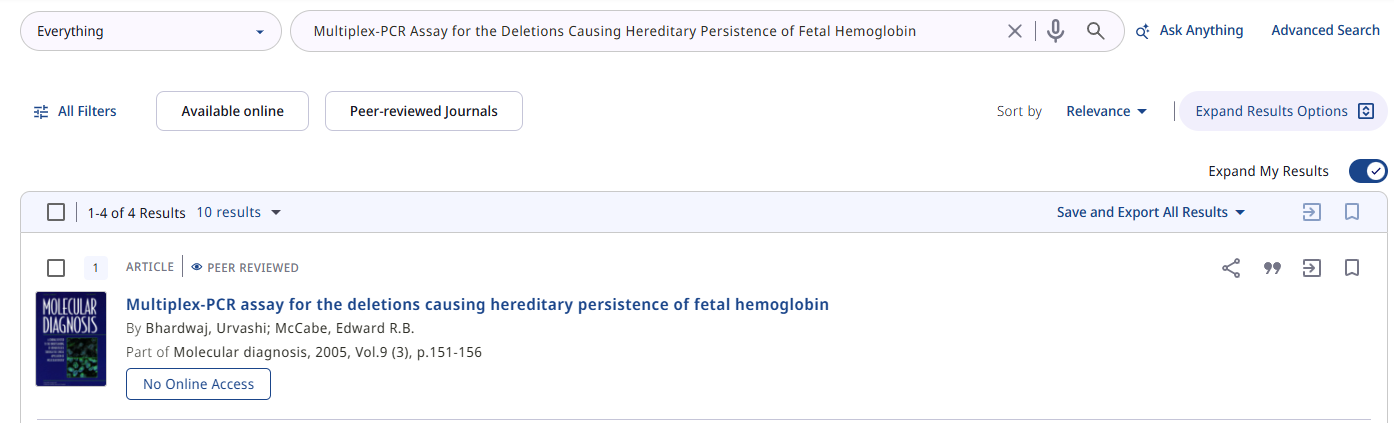
 button in the top right corner to log into the Primo library system, then click “Expand Results Options” and click “Expand My Results” to broaden your search results.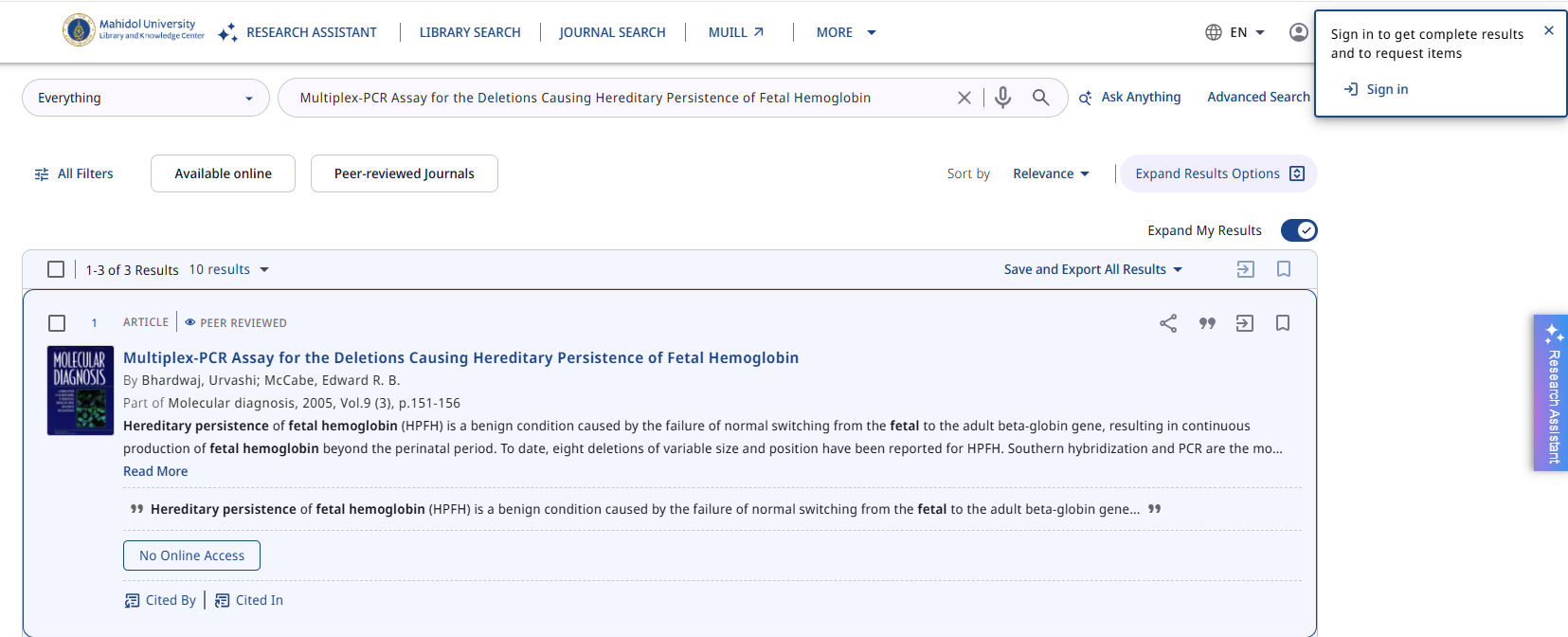
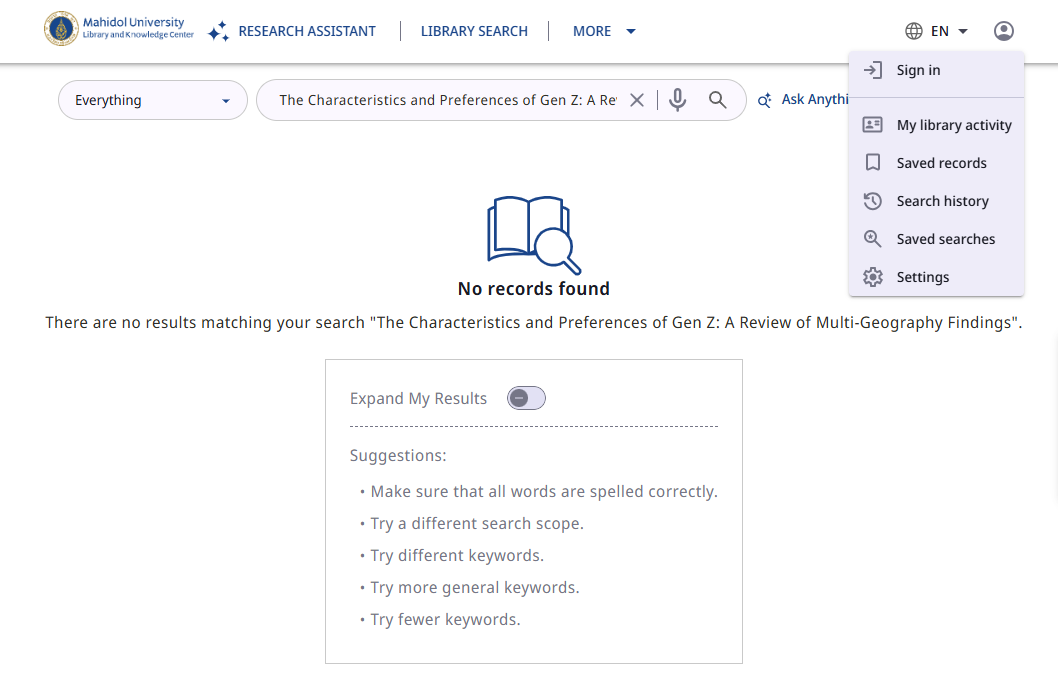
In case the search results page appears No records found, click “Expand My Results” and sign in to the Primo library system with the library account.
How to sign in to the library account?
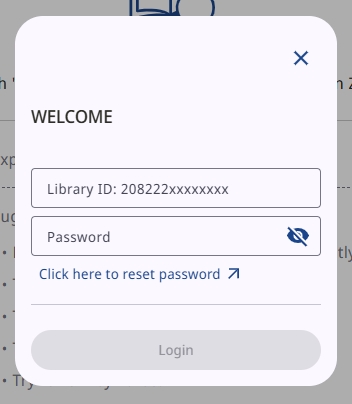
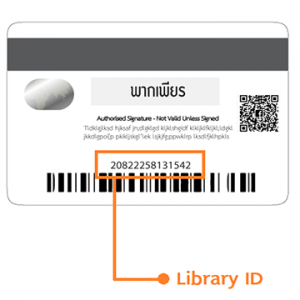
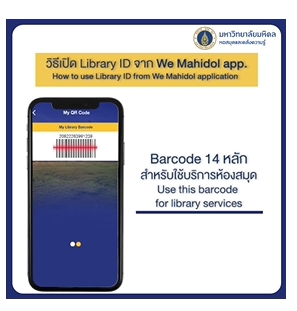
- Username: Enter your Student ID Barcode or Library ID found in the We Mahidol Application.
- Password: Enter the default password “mahidollibrary”, then click Login.
Notice: To find your Student ID Barcode or Library ID in the We Mahidol Application.
Step 3
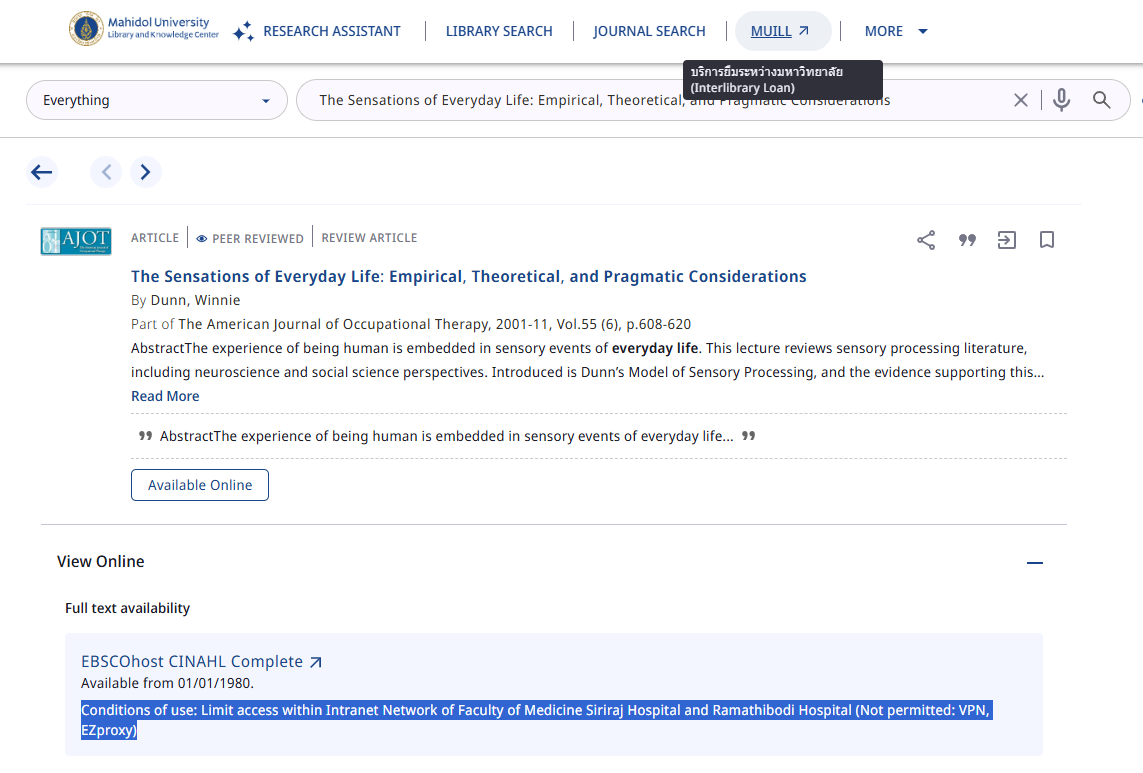
Resource Sharing requests will only appear for electronic documents (journal articles and book chapters) that are unavailable through the library’s search system, shown with a “No Online Access” status. Then click on the “Title” or “No Online Access” button to proceed.
Step 4
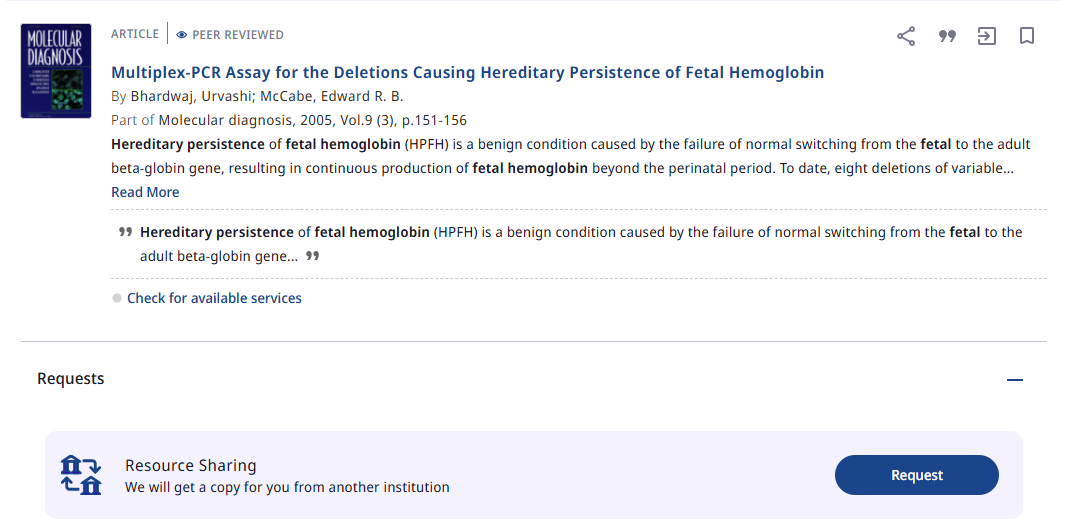
Resource Sharing service is located under Requests. Click “Request”.
Step 5
The Resource Sharing Request form specifies the type of electronic file requested. The form may vary slightly depending on the resource type, as described below:
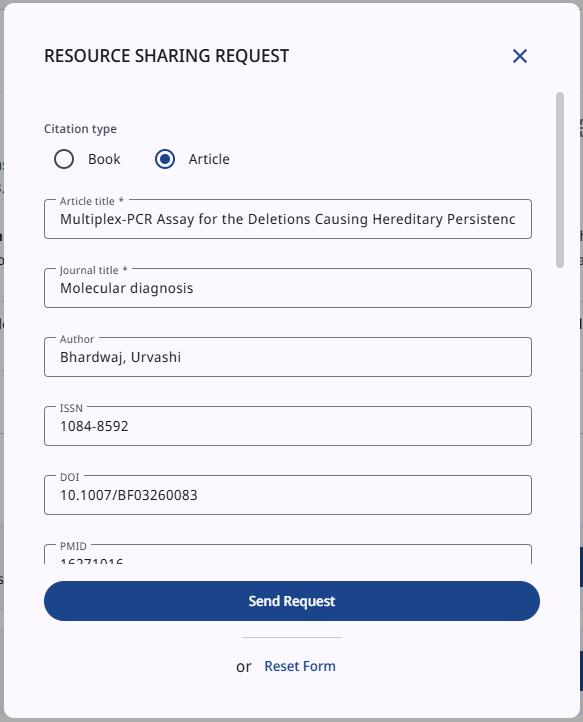
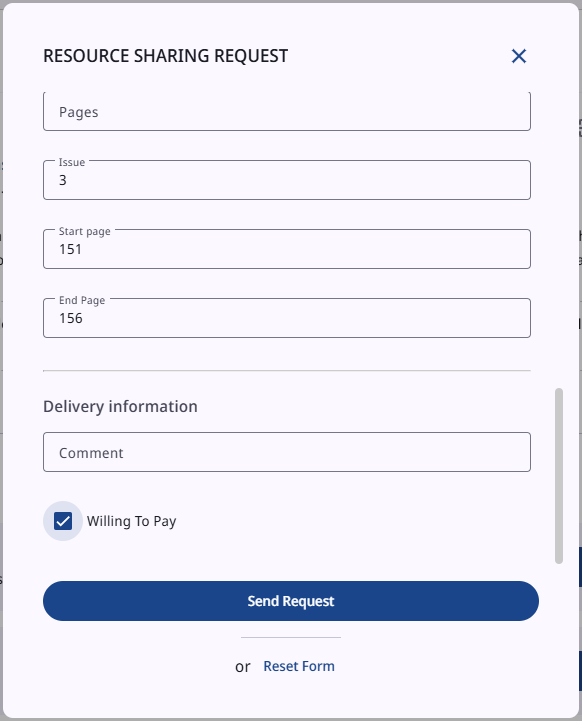
Article : For Journals & Articles request, the form will display the resource details of selected items automatically. Users must check the “Willing To Pay” checkbox in the Delivery Information section, then click “Send Request” to submit your request.
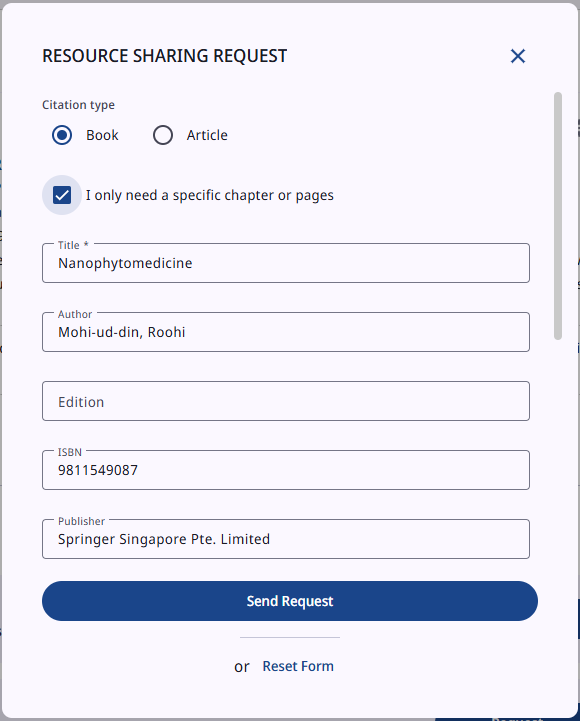
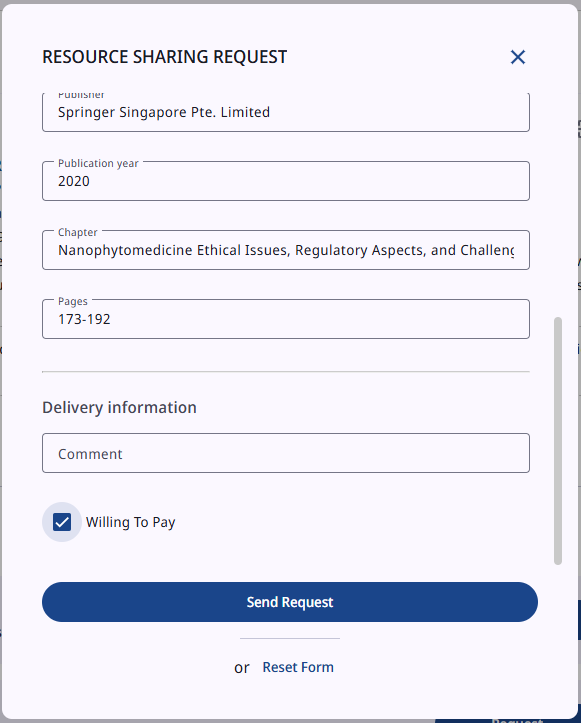
Book : For a book chapter request, users must check the “I only need a specific chapter or pages” and “Willing To Pay” checkboxes, then click “Send Request” to submit your request.
Notice
In case the search result for an electronic resource (Journals/Articles or Book Chapters) appears “Get PDF” or “Available Online”, that means the digital resource is accessible through the library’s search system. Users can click the Title, “Get PDF” or “Available Online” button to read online or download it as a pdf file.
If users are unable to access or download the file, click “Resource Sharing (blank form)” in the top menu bar. Users have to fill in the details of the required electronic resource in a blank form and check the “Willing To Pay” checkbox, then click “Send Request” to submit your request.
Step 6
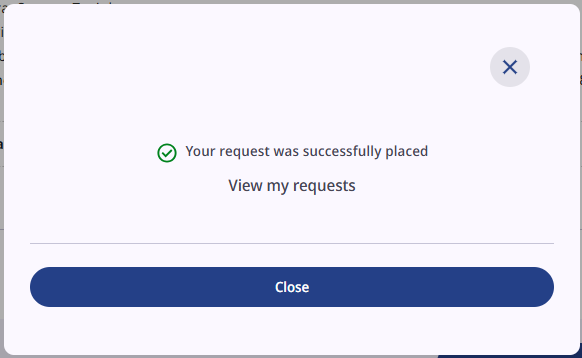
Once the Resource Sharing Request form has been submitted successfully, a confirmation message saying “Your request was successfully placed” will appear on the screen.
Step 7
To check the status of your submissions, click “View My Requests” or log in through “Self Renew / My Account”. Your request will go through the following 4 statuses:
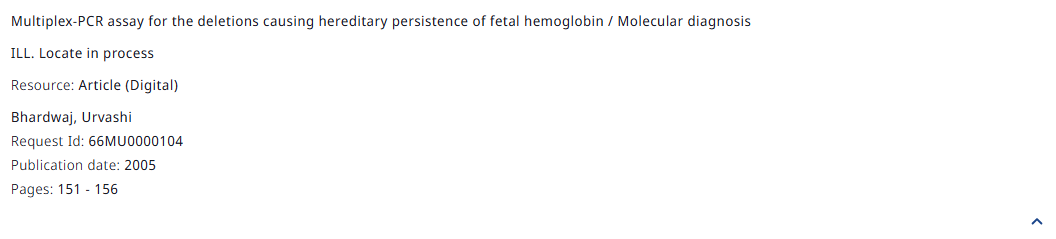
Status ILL : Locate in process — The system is searching partner libraries to match your request.
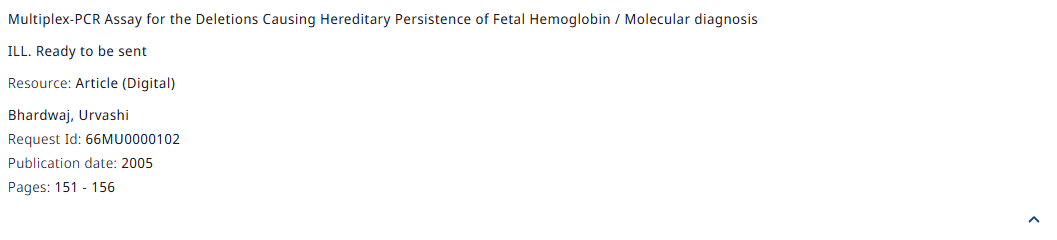
Status ILL : Ready to be sent — The request is waiting to be sent to the partner libraries.
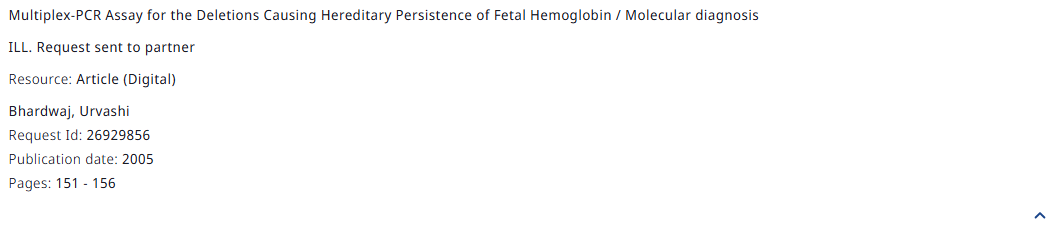
Status ILL : Request sent to partner — The request was sent to a partner and should be filled soon.
Status ILL : Delivered — Your request has been fulfilled. Users can click
 to download it as a pdf file, or download it via the Resource Sharing notification email.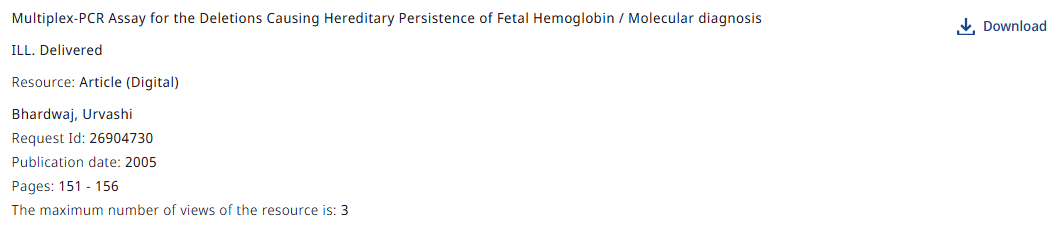
Notice
- When the request status shows “ILL: Delivered”, users will receive a Resource Sharing notification email as an additional channel for downloading the file.
- The maximum number of views of the resource is 3 times within 90 days.