
Accessing Mahidol’s databases and resources with Browser Extensions
Mahidol University has subscribed the database for instructors, students and staff for research development. Mahidol University Library and Knowledge Center therefore introduce a convenient way to access database and resources subscribed via browser extensions
The step for installing the extension on Google Chrome. (MU Central Library has already installed this extension in all PC indoors.)
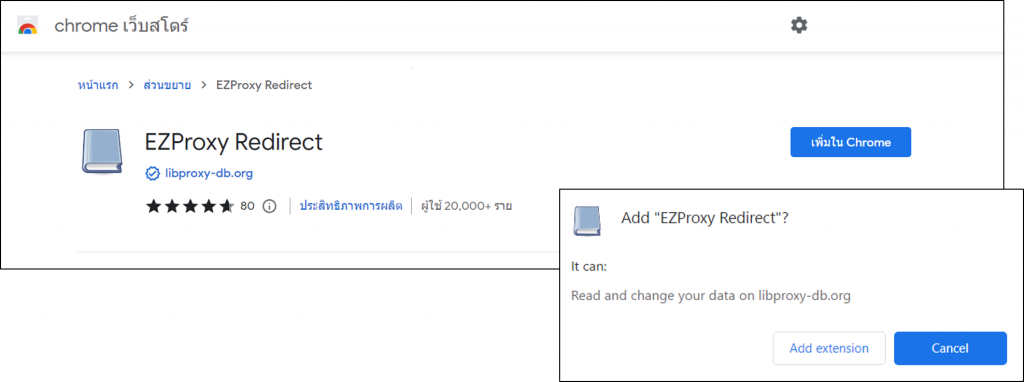
- Install Chrome extension “EZProxy Redirect” at https://chrome.google.com/webstore/detail/ezproxy-redirect/gfhnhcbpnnnlefhobdnmhenofhfnnfhiThe extension can be installed in other browsers such as Microsoft Edge, Opera, etc.
- Click on “Add to Chrome” and “Add extension” to install.
 –
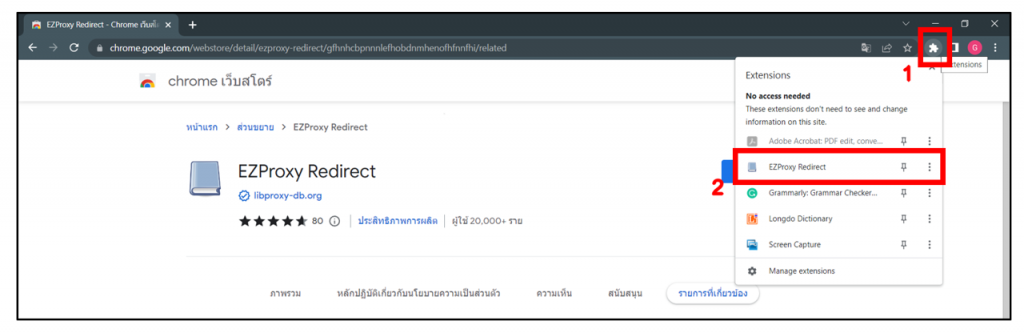
– - Click the extension button on top right and select “EZProxy Redirect” to set it up
 –
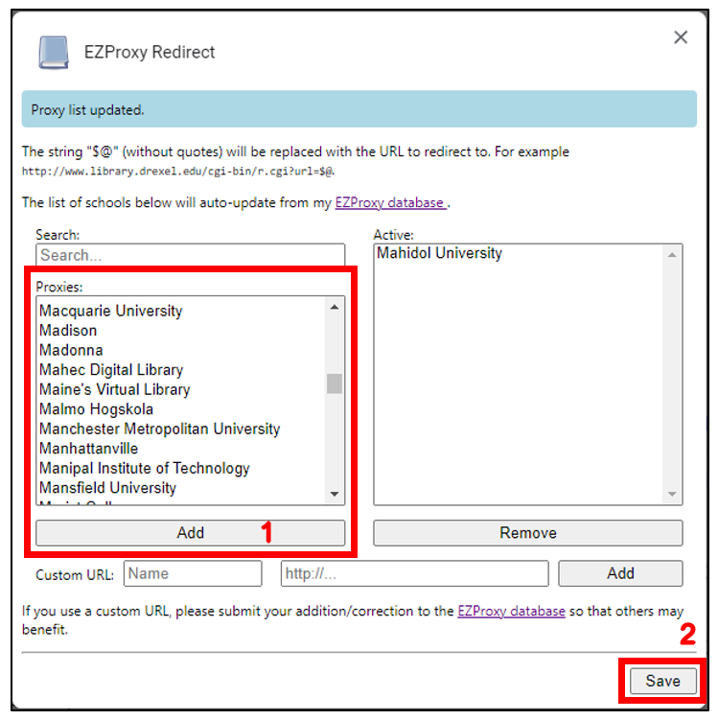
– - Set the add-on as follows.
4.1 Select “Mahidol University” in Proxies box , and click “Add” to move it to the Active box on the right.
4.2 Click “Save”.
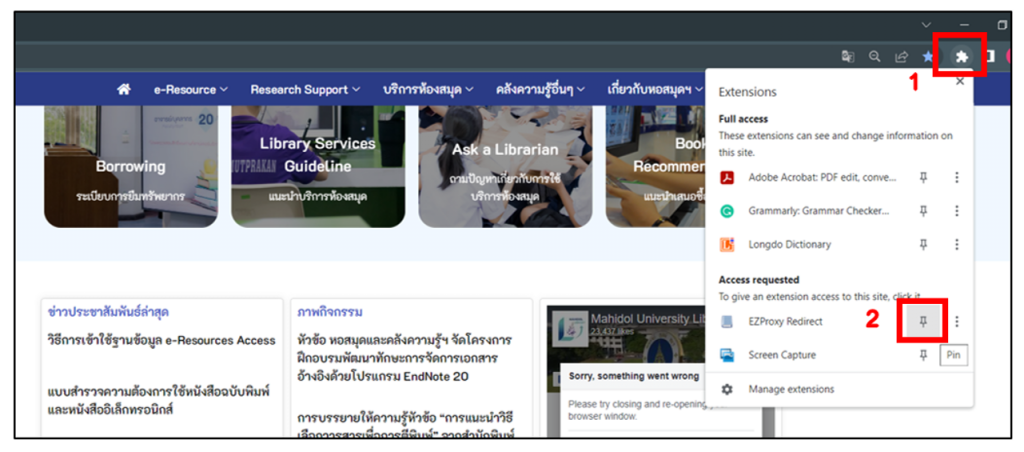
–– - Click the Extensions button on top right and pin EZProxy Redirect for easier access.

How to use EZproxy Redirect for Google Chrome
Step 1
Search articles or e-databases through the Search engine base on your preference (ex. Google). After getting into the database, click the Book icon (Reload through EZproxy Access…) at the top right for authentication.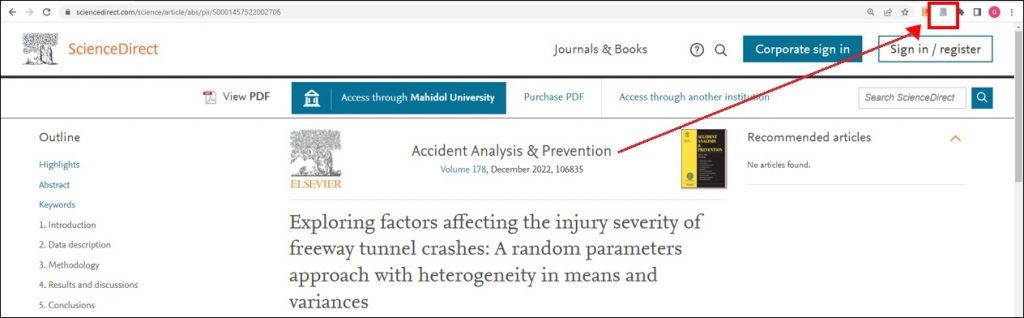
The authentication window will show up which required Captcha code and Username & Password (same as MU WIFI) to confirm your access rights (Only 1 time authentication after opening the browser)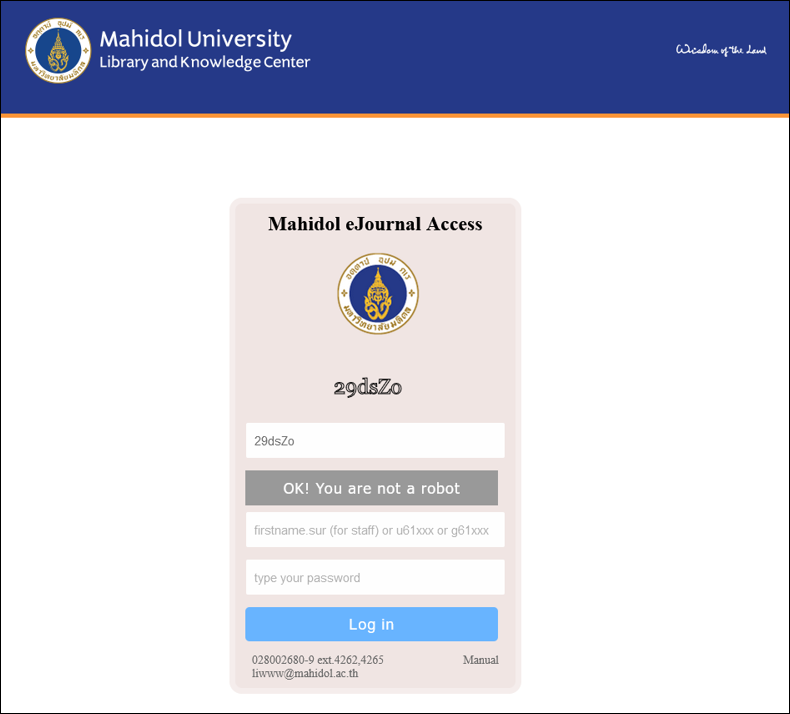
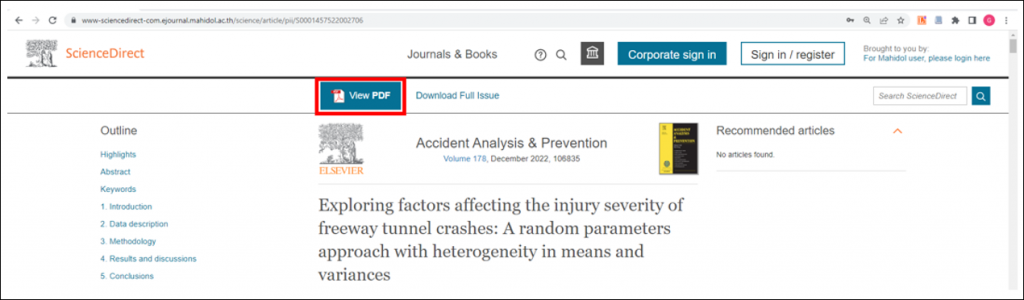
After successful login, Users will be able to access the resources that University subscribed.
Step 2
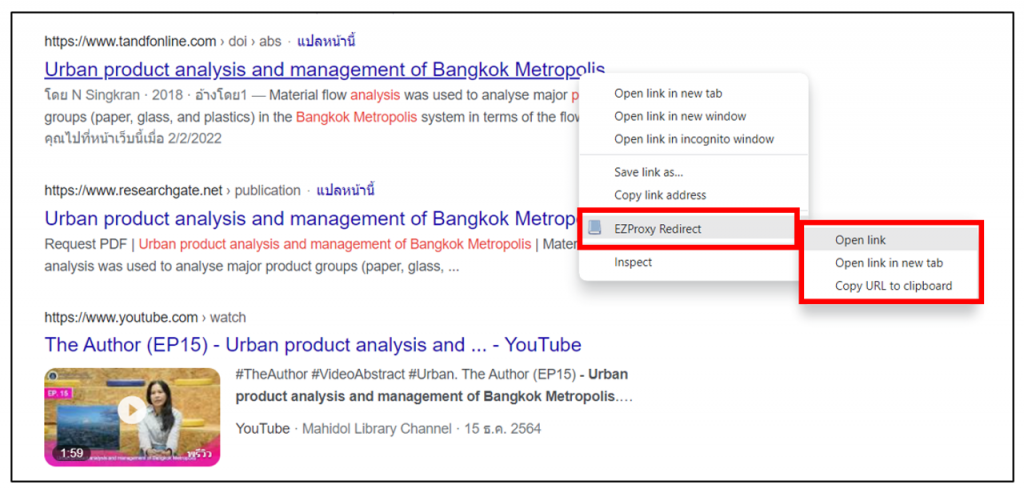
- Searching by fill your article title. When search results show up, right-click on the link and click “EZproxy Redirect” then select “Open link”.

Note : Journals or articles you searched via Google must be contained in the databases Mahidol subscribed. The list of Mahidol’s databases: https://www.li.mahidol.ac.th/e-databases